
How to Configure VLAN on Two Cisco Switches with Four PCs
Absolutely. Here is a WordPress-ready blog post for a beginner-friendly Cisco VLAN lab using 2 switches and 4 PCs.
How to Configure VLAN on Two Cisco Switches with Four PCs
Introduction
VLAN (Virtual Local Area Network) is used to logically divide a physical network into multiple separate networks. VLANs help improve network security, management, and traffic control.
In this tutorial, we will configure VLANs using:
- 2 Cisco switches
- 4 PCs
- VLAN 10 – SALES
- VLAN 20 – IT
- A trunk link between the two switches
The lab can be created easily in Cisco Packet Tracer.


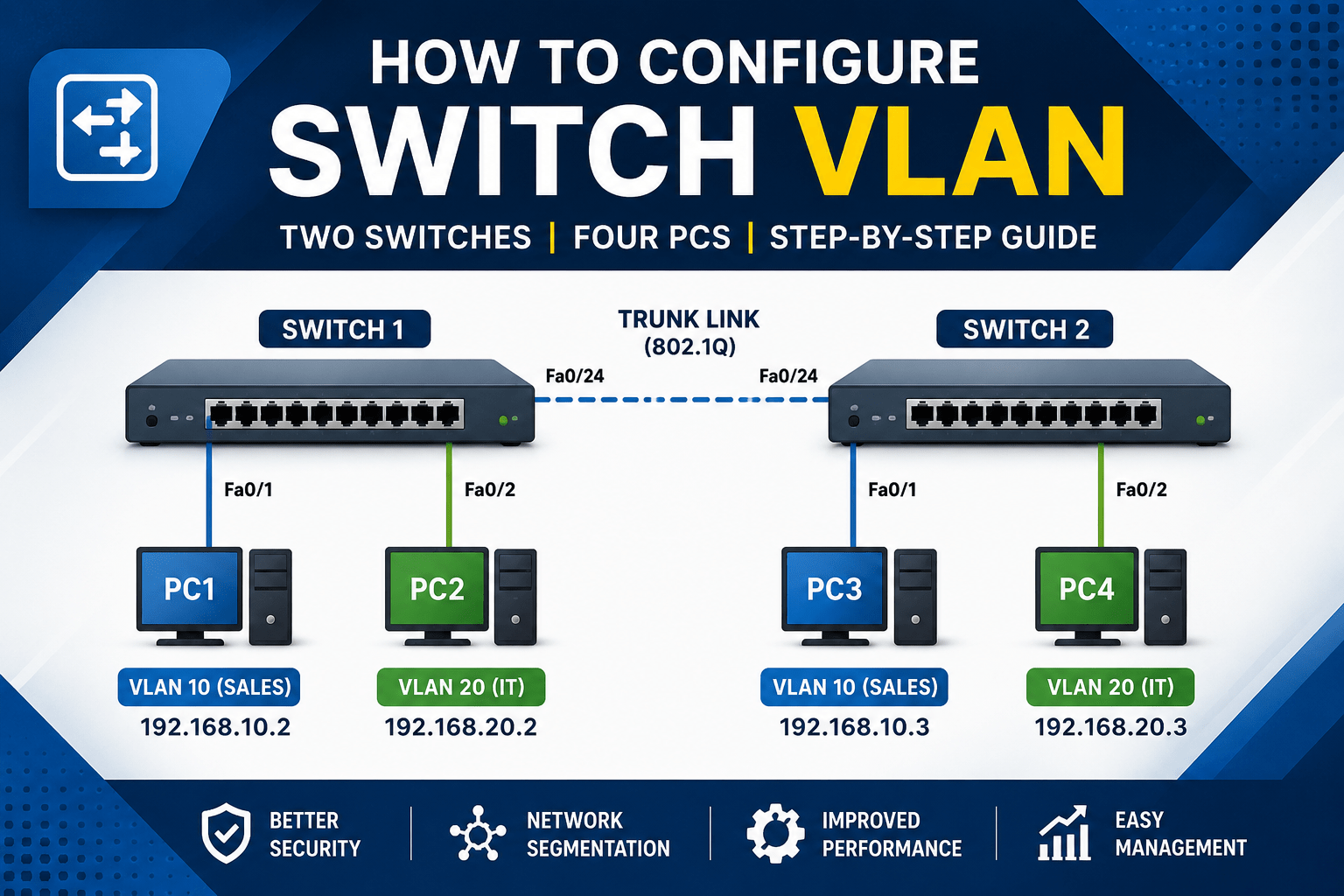
1. Network Topology
We will create the following topology:
             Trunk Link
        Fa0/24 -------- Fa0/24
       +--------+      +--------+
       | Switch1|------| Switch2|
       +--------+      +--------+
        |      |        |      |
       PC1    PC2      PC3    PC4
VLAN Design
| Device | Port | VLAN | IP Address |
|---|---|---|---|
| PC1 | SW1 Fa0/1 | VLAN 10 | 192.168.10.2 |
| PC2 | SW1 Fa0/2 | VLAN 20 | 192.168.20.2 |
| PC3 | SW2 Fa0/1 | VLAN 10 | 192.168.10.3 |
| PC4 | SW2 Fa0/2 | VLAN 20 | 192.168.20.3 |
We will use:
- VLAN 10 = SALES
- VLAN 20 = IT
- Switch-to-switch connection = Trunk
2. Connect the Devices
In Cisco Packet Tracer, add:
- 2 × Cisco 2960 switches
- 4 × PCs
Connect:
PC1 → Switch1 Fa0/1
PC2 → Switch1 Fa0/2

PC3 → Switch2 Fa0/1
PC4 → Switch2 Fa0/2

Switch1 Fa0/24 → Switch2 Fa0/24
For the connections, you can use Copper Straight-Through cables.
3. Configure Switch 1
Open Switch1 → CLI.
Enter:
enable
configure terminal

hostname SW1
Create VLAN 10
vlan 10
name SALES
exit
Create VLAN 20
vlan 20
name IT
exit
Now configure the PC ports.
PC1 – VLAN 10
interface fastethernet 0/1
switchport mode access
switchport access vlan 10
exit
PC2 – VLAN 20
interface fastethernet 0/2
switchport mode access
switchport access vlan 20
exit
4. Configure Trunk Port on Switch 1
The connection between the two switches must carry traffic from both VLAN 10 and VLAN 20.
Configure Fa0/24 as a trunk:
interface fastethernet 0/24
switchport mode trunk
exit
Save the configuration:
end
write memory
5. Configure Switch 2
Open Switch2 → CLI.
enable
configure terminal

hostname SW2
Create VLAN 10:
vlan 10
name SALES
exit
Create VLAN 20:
vlan 20
name IT
exit
Configure PC3 – VLAN 10
interface fastethernet 0/1
switchport mode access
switchport access vlan 10
exit
Configure PC4 – VLAN 20
interface fastethernet 0/2
switchport mode access
switchport access vlan 20
exit
6. Configure Trunk on Switch 2
Configure Fa0/24:
interface fastethernet 0/24
switchport mode trunk
exit
Save:
end
write memory
7. Configure IP Addresses on PCs
Now configure the IP addresses.
PC1
Go to:
PC1 → Desktop → IP Configuration
Enter:
IP Address:      192.168.10.2
Subnet Mask:     255.255.255.0
PC2
IP Address:      192.168.20.2
Subnet Mask:     255.255.255.0
PC3
IP Address:      192.168.10.3
Subnet Mask:     255.255.255.0
PC4
IP Address:      192.168.20.3
Subnet Mask:     255.255.255.0
A default gateway is not required for this basic Layer-2 VLAN lab because we are not configuring routing between VLANs.
8. Understanding How This Works
The important concept is that the same VLAN exists on both switches.
VLAN 10 – SALES

PC1
192.168.10.2
     |
     | VLAN 10
     |
   SW1
     |
     | TRUNK
     |
   SW2
     |
     | VLAN 10
     |
PC3
192.168.10.3
Therefore:
PC1 can communicate with PC3.
Similarly:
VLAN 20 – IT

PC2
192.168.20.2
     |
   SW1
     |
     | TRUNK
     |
   SW2
     |
PC4
192.168.20.3
Therefore:
PC2 can communicate with PC4.
9. Test the VLAN Configuration
Open PC1 → Desktop → Command Prompt.
Run:
ping 192.168.10.3You should receive replies:
Reply from 192.168.10.3
Reply from 192.168.10.3
Reply from 192.168.10.3
This confirms that PC1 and PC3 are communicating through VLAN 10 across the trunk.
Now test PC2:
ping 192.168.20.3PC2 should successfully communicate with PC4 through VLAN 20.
10. Test VLAN Isolation
Now try:
From PC1
ping 192.168.20.2This should fail.
Why?
PC1 is in:
VLAN 10while PC2 is in:
VLAN 20A normal Layer-2 switch does not route traffic between different VLANs.
11. Verify VLANs on the Switch
On SW1 and SW2, run:
show vlan briefYou should see something similar to:
VLAN Name                             Status    Ports
---- -------------------------------- --------- ----------------
1    default                          active    ...
10   SALES                            active    Fa0/1
20   IT                               active    Fa0/2
12. Verify the Trunk
Run:
show interfaces trunkYou should see Fa0/24 operating as a trunk.
For example:
Port        Mode         Encapsulation  Status
Fa0/24      on           802.1q         trunking
The trunk allows multiple VLANs to travel between the switches.
13. Complete Configuration
Switch 1
enable
configure terminal

hostname SW1

vlan 10
name SALES
exit

vlan 20
name IT
exit

interface fastethernet 0/1
switchport mode access
switchport access vlan 10
exit

interface fastethernet 0/2
switchport mode access
switchport access vlan 20
exit

interface fastethernet 0/24
switchport mode trunk
exit

end
write memory
Switch 2
enable
configure terminal

hostname SW2

vlan 10
name SALES
exit

vlan 20
name IT
exit

interface fastethernet 0/1
switchport mode access
switchport access vlan 10
exit

interface fastethernet 0/2
switchport mode access
switchport access vlan 20
exit

interface fastethernet 0/24
switchport mode trunk
exit

end
write memory
14. Final Network Diagram
                    TRUNK
              Fa0/24 ↔ Fa0/24
             +----------------+
             |                |
        +---------+      +---------+
        |   SW1   |      |   SW2   |
        +---------+      +---------+
          |      |         |      |
        Fa0/1  Fa0/2     Fa0/1  Fa0/2
          |      |         |      |
         PC1    PC2       PC3    PC4
          |      |         |      |
       VLAN 10 VLAN 20  VLAN 10 VLAN 20
Expected Results
| Test | Result |
|---|---|
| PC1 → PC3 | ✅ Works |
| PC2 → PC4 | ✅ Works |
| PC1 → PC2 | ❌ Does not work |
| PC1 → PC4 | ❌ Does not work |
| PC3 → PC4 | ❌ Does not work |
Conclusion
In this lab, we configured VLAN 10 and VLAN 20 on two Cisco switches and connected the switches using a trunk link.
The important commands to remember are:
vlan 10switchport mode access
switchport access vlan 10and for the connection between switches:
switchport mode trunkThis is a basic but important Cisco networking lab for understanding VLANs, access ports, trunk ports, and VLAN isolation.