
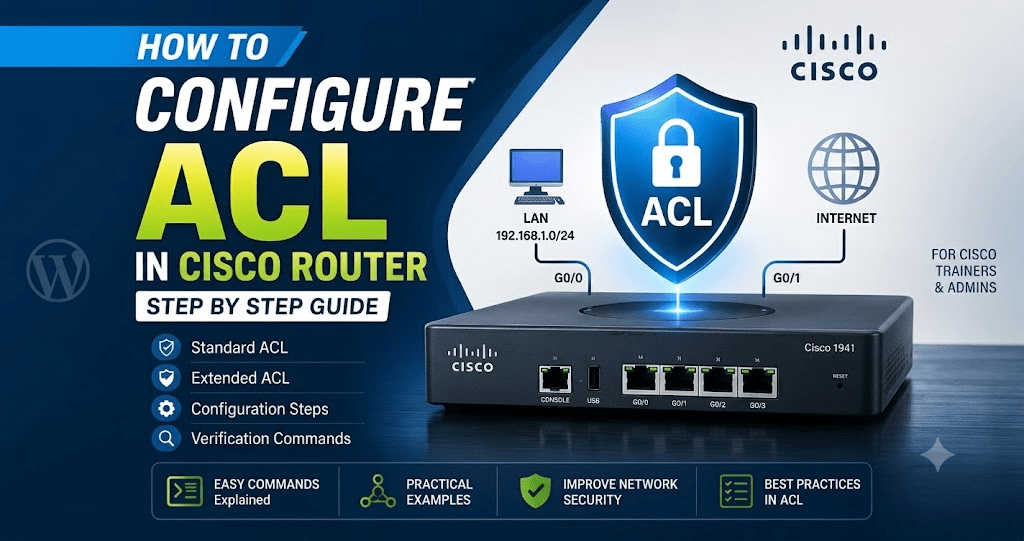
How to Configure ACL in Cisco Router – Step-by-Step Guide
Category: Cisco Networking | Level: Beginner to Intermediate
Introduction
An Access Control List (ACL) is one of the most important security features available on Cisco routers. ACLs are used to permit or deny network traffic based on rules such as source IP address, destination IP address, protocol, and port number.
In this tutorial, we will learn how to configure ACL on a Cisco router step by step, including Standard ACL and Extended ACL examples.
What is ACL?
ACL stands for Access Control List. It is a list of rules that a Cisco router uses to decide whether network traffic should be allowed or blocked.
There are two commonly used types:
- Standard ACL: Filters traffic primarily based on the source IP address.
- Extended ACL: Filters traffic based on source IP, destination IP, protocol, and port number.
How ACL works
When a packet reaches an interface where an ACL is applied, the router checks the ACL rules from top to bottom.
The first matching rule is applied.
Important: Cisco ACLs have an implicit
denyat the end. If traffic does not match a permit statement, it will be denied.
Example Network Topology
We will use this simple topology:
PC
192.168.1.10
    |
    | G0/0
    |
+-----------+
|   R1      |
|   Cisco   |
+-----------+
    |
    | G0/1
    |
  Internet
Example network:
LAN:       192.168.1.0/24
Router G0/0: 192.168.1.1
Router G0/1: Internet/WAN
Part 1: Configure a Standard ACL
Scenario
Suppose we want to block the entire 192.168.1.0/24 network from reaching traffic through Router R1’s G0/1 interface.
Step 1: Enter privileged mode
Router> enable
Step 2: Enter global configuration mode
Router# configure terminal
Step 3: Create the Standard ACL
Router(config)# access-list 10 deny 192.168.1.0 0.0.0.255
Here:
10= ACL numberdeny= block traffic192.168.1.0= source network0.0.0.255= wildcard mask
Step 4: Permit other traffic
Router(config)# access-list 10 permit any
This allows all other traffic.
Step 5: Enter the interface
Router(config)# interface gigabitEthernet 0/1
Step 6: Apply the ACL
Router(config-if)# ip access-group 10 out
The keyword out means the ACL is applied to traffic leaving the interface.
Step 7: Exit and save the configuration
Router(config-if)# end
Router# write memory
You can also use:
Router# copy running-config startup-config
Part 2: Configure an Extended ACL
Extended ACLs provide much more control than Standard ACLs.
Scenario
Suppose we want to:
- Allow HTTP traffic on port 80
- Allow HTTPS traffic on port 443
- Block other IP traffic from the LAN
Step 1: Create the Extended ACL
Router(config)# access-list 101 permit tcp 192.168.1.0 0.0.0.255 any eq 80
This permits HTTP traffic.
Next:
Router(config)# access-list 101 permit tcp 192.168.1.0 0.0.0.255 any eq 443
This permits HTTPS traffic.
Then deny other IP traffic:
Router(config)# access-list 101 deny ip 192.168.1.0 0.0.0.255 any
Step 2: Apply the ACL to the interface
Router(config)# interface gigabitEthernet 0/1
Then:
Router(config-if)# ip access-group 101 out
Step 3: Save the configuration
Router(config-if)# end
Router# copy running-config startup-config
How to Verify ACL Configuration
After configuring an ACL, always verify it.
Display ACLs
Router# show access-lists
or:
Router# show ip access-lists
Check the interface
Router# show ip interface gigabitEthernet 0/1
This helps confirm whether an ACL is applied inbound or outbound.
View the complete configuration
Router# show running-config
Understanding Wildcard Masks
Wildcard masks are very important when configuring Cisco ACLs.
For example:
Network:       192.168.1.0
Subnet Mask:   255.255.255.0
Wildcard Mask: 0.0.0.255
The wildcard mask is basically the inverse of the subnet mask.
255.255.255.255
-255.255.255.0
----------------
  0.0.0.255
Therefore:
access-list 10 deny 192.168.1.0 0.0.0.255
means deny traffic from the entire 192.168.1.0/24 network.
Important ACL Rules to Remember
1. ACLs are processed from top to bottom
For example:
access-list 10 deny host 192.168.1.10
access-list 10 permit 192.168.1.0 0.0.0.255
The first rule blocks 192.168.1.10, while the second rule allows the rest of the network.
2. Order matters
If you put a broad permit rule before a specific deny, the deny rule may never be reached.
3. Implicit deny
Every ACL effectively ends with:
deny any
Therefore, if you want other traffic to pass, explicitly use:
permit any
4. Standard ACL placement
As a general rule, Standard ACLs are placed closer to the destination because they filter only by source address.
5. Extended ACL placement
Extended ACLs are generally placed closer to the source because they can filter traffic more specifically.
Useful ACL Commands
show access-lists
Display configured ACLs.
show ip access-lists
Display IP ACL entries.
show running-config
Display the current router configuration.
show ip interface g0/1
Check ACLs applied to an interface.
To remove an ACL:
Router(config)# no access-list 10
To remove an ACL from an interface:
Router(config-if)# no ip access-group 10 out
Conclusion
Cisco ACLs are an essential part of network security. They allow network administrators to control which traffic can enter or leave a router interface.
For beginners, remember these three things:
- Standard ACL → mainly source IP filtering
- Extended ACL → source, destination, protocol and port filtering
- ACL rules are processed from top to bottom, with an implicit deny at the end
Practice these configurations in Cisco Packet Tracer before applying ACLs to a production network.
Recommended SEO title:
How to Configure ACL in Cisco Router Step by Step | Standard & Extended ACL
Suggested URL slug:/configure-acl-cisco-router-step-by-step/
Suggested meta description:
Learn how to configure Standard and Extended ACL on a Cisco router step by step with practical commands, wildcard masks, interface configuration, verification commands, and examples.