
Complete Guide to Wi-Fi Setup for Home and Small Offices
Introduction
In today’s digital world, a reliable Wi-Fi network is essential for homes and businesses. From streaming movies to working remotely and connecting smart devices, Wi-Fi powers our everyday activities.
Setting up a proper Wi-Fi network ensures:
- Faster internet speeds
- Stable connections
- Better coverage across your home or office
- Secure access for all your devices
Whether you are installing a new router or optimizing an existing network, this guide will help you understand the basics of Wi-Fi setup.
What is Wi-Fi Setup?
Wi-Fi setup refers to the process of installing and configuring wireless networking equipment such as:
- Modem
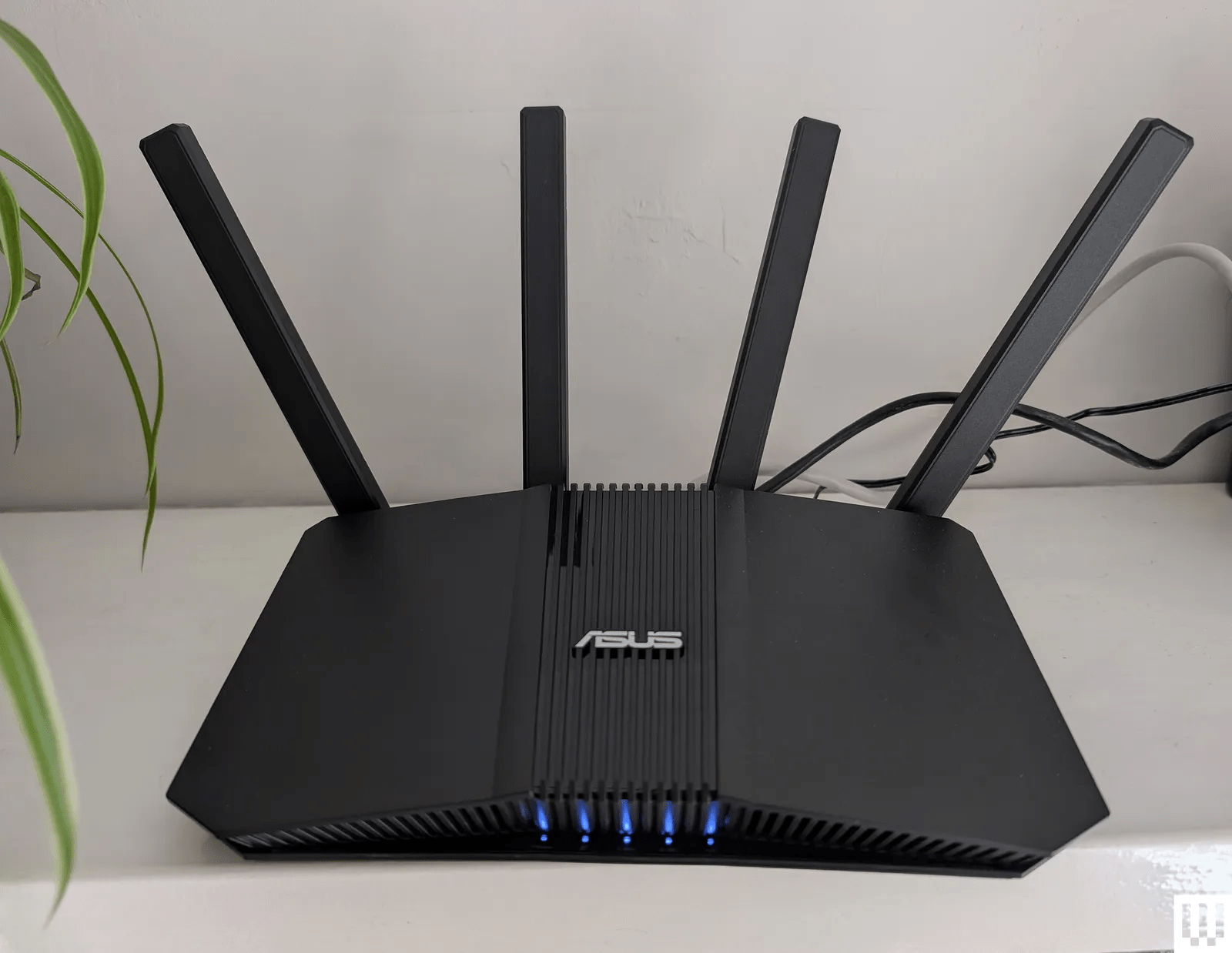
- Router
- Access points
- Network switches
The goal is to create a wireless network that connects devices like smartphones, laptops, smart TVs, and IoT devices to the internet.
A typical home Wi-Fi setup includes a modem connected to a router, which then broadcasts the wireless signal to devices throughout the space.
Basic Components of a Wi-Fi Network
1. Modem
The modem connects your home to your Internet Service Provider (ISP). It receives internet signals from your provider and passes them to your router.
2. Router
The router distributes the internet connection to multiple devices through wired and wireless connections.
3. Wireless Devices
Devices that connect to Wi-Fi include:
- Smartphones
- Laptops
- Tablets
- Smart TVs
- Security cameras
- Smart home devices
Step-by-Step Wi-Fi Setup Guide
Step 1: Connect the Modem
Connect the modem to your ISP line and power it on.
Step 2: Connect the Router
Use an Ethernet cable to connect the modem to the router’s WAN or Internet port.
Step 3: Power the Router
Turn on the router and wait for the indicator lights to stabilize.
Step 4: Access Router Settings
Open a web browser and enter the router’s IP address (commonly):
192.168.0.1
192.168.1.1
Log in using the default username and password provided on the router label.
Step 5: Configure Wi-Fi Network
Set the following:
- Wi-Fi Network Name (SSID)
- Strong Wi-Fi Password
- Security type (WPA2 or WPA3)