Connect to a VPN in Windows
Create a VPN profile
Before you can connect to a VPN, you must have a VPN profile on your device. You can either create a VPN profile on your own or set up a work account to get a VPN profile from your company.
Before you start:
- If it’s for work, look for VPN settings or a VPN app on your company’s intranet site while you’re at work, or contact your company’s support person.
- If it’s for a VPN service you subscribe to for personal use, visit the Microsoft Store to see if there’s an app for that service, or go to the VPN service’s website to see if the VPN connection settings to use are listed there.
Once you have your work or personal VPN settings ready:
- In the Settings app on your Windows device, select Network & internet > VPN > Add VPN.
- Under Add a VPN connection, do the following:
- Select Save.
If you need to edit the VPN connection info or specify additional settings, such as proxy settings:
- From the VPN settings page, select the VPN connection you want to edit, select Advanced options, then select Edit next to the details you want to update. Once you’ve made the updates needed select either Save or Apply.
Connect to a VPN
When you have a VPN profile, you’re ready to connect.
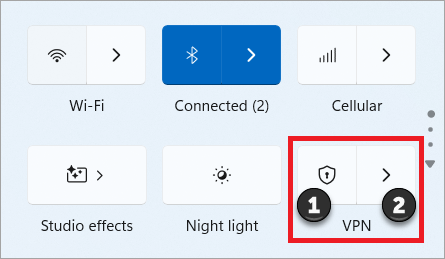
- On your taskbar, select the Network, Volume, Battery icon > VPN.
- If you have one VPN configured, you can turn it on and off by toggling the left side of the VPN quick setting, marked with a (1), below.
- If there are multiple VPNs configured, you will need to select one to connect to. Select Manage VPN connections (marked with a (2) in the image), select the one you want from the list of connections, and then select Connect.
- If prompted, enter your username and password or other sign in info.
- In the Settings app on your Windows device, select Network & internet > VPN.
- Next to the VPN connection you want to use, select Connect.
- If prompted, enter your username and password or other sign in info.
Verify VPN connection
- On the VPN settings page, the VPN connection name will display Connected underneath it.
- On the taskbar, a blue shield will display when you’re connected to a recognized VPN.
Support for Windows 10 has ended on October 14, 2025
After October 14, 2025, Microsoft will no longer provide free software updates from Windows Update, technical assistance, or security fixes for Windows 10. Your PC will still work, but we recommend moving to Windows 11.
Create a VPN profile
Before you can connect to a VPN, you must have a VPN profile on your device. You can either create a VPN profile on your own or set up a work account to get a VPN profile from your company.
Before you start:
- If it’s for work, look for VPN settings or a VPN app on your company’s intranet site while you’re at work, or contact your company’s support person.
- If it’s for a VPN service you subscribe to for personal use, visit the Microsoft Store to see if there’s an app for that service, then go to the VPN service’s website to see if the VPN connection settings to use are listed there.
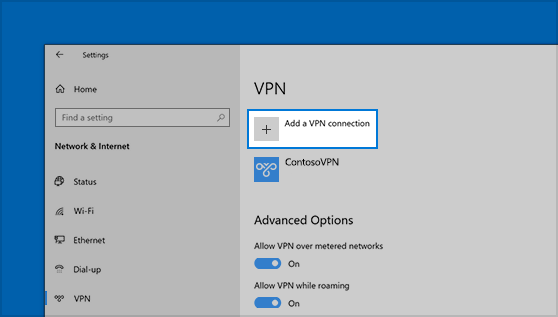
- Select the Start button, then select Settings > Network & Internet > VPN > Add a VPN connection.
- In Add a VPN connection, do the following:
- Select Save.
If you need to edit the VPN connection info or specify additional settings, such as proxy settings, choose the VPN connection and then select Advanced options.
Connect to a VPN
When you have a VPN profile, you’re ready to connect.
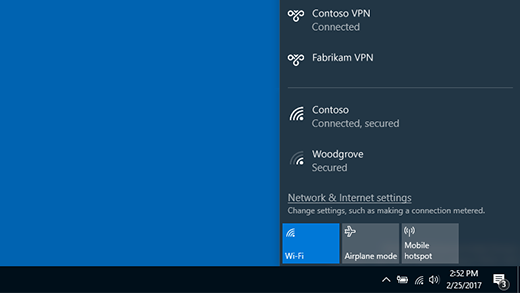
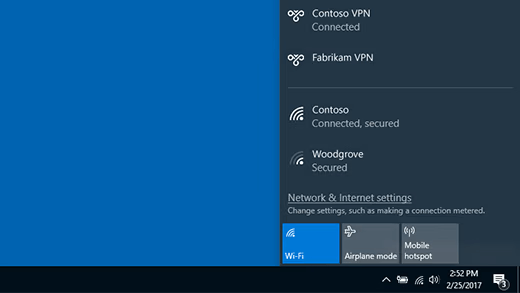
- On the far right of the taskbar, select the Network icon (either or ).
- Select the VPN connection you want to use, then do either of the following depending on what happens when you select the VPN connection:
- If you’re prompted, enter your username and password or other sign-in info.
When connected, the VPN connection name will display Connected underneath it. To see if you’re connected to the VPN while you’re doing things on your PC, select the Network icon (either or ) on the far right of the taskbar, then see if the VPN connection says Connected.